Be aware: Some posts are delayed. We apologize for that! A backchannel refers to a secondary, often informal, communication channel that runs parallel to the main communication channel. In the classroom, it provides students with an outlet to: - ask questions when the teacher is talking--isn't at a lesson point where she can pause
- engage in conversation with
other students without disturbing the class
- add comments to a conversation even after the class has moved on in the lesson plan.
What is a backchannel in your classroom? Why? What are some options you might use? Here's a sixteen minute video I use with my online classes to address these topics: |
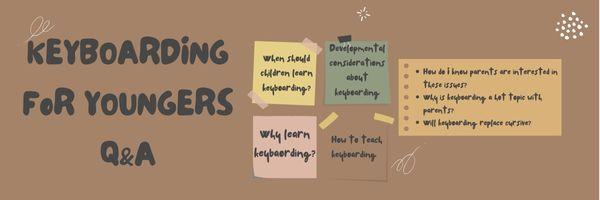
A while ago, I participated in an online discussion about keyboarding for kids. The host thought it would be a yawner, but any tech teacher knows keyboarding is a controversial subject. In my classroom, it’s the most-asked question from parents, concerns like: - When do students
start?
- What are some of the developmental considerations about keyboarding?
- Why learn keyboarding?
- How do I know what questions parents are interested in about keyboarding?
- Why is it a 'hot topic' with parents?
- How do I teach keyboarding?
- Will keyboarding replace cursive?
The list goes on. On my blog, Ask a Tech Teacher, posts about keyboarding are read about thrice as often as any other topic. So I enthusiastically answered every question the producer had with my thoughts from thirty years of teaching. One of the other guests was a children’s education expert who believed technology (and I guess, by transference, keyboarding) was the root of much of the
increase in ADHD among children and this was her big opportunity to make her case. The last participant was the mom of a first grader there to share her keyboarding experiences (turns out, she was also the director of the early learning initiative at the New America Foundation, an author, and a prominent blogger). Surprisingly--or not--we agreed on many points and ended up having a good discussion where everyone learned. Here’s a synopsis of the questions
discussed: Before trying this lesson, start with Photoshop for Fifth Graders: The First Step
is Word, Autofixes, cloning, and cropping. Don’t worry. It’s not hard–just the basics. Ready? Let’s start with what Adobe Photoshop is–a grown-up KidPix, and the default photo-editing program for anyone serious about graphics. This series of projects (available in 55 Technology Projects for the Digital Classroom Volume I) introduces students to a traditionally-challenging program in an easy to understand way, each scaffolding to the next, thus avoiding the frustration and confusion inherent in most Photoshop training. Adobe Photoshop has an impressive collection of tools to add pizazz to
pics. You might have students open their school picture for this project. They love working with their own image. Click for more Q: Some programs hide the taskbar when they open. How do I access the Start button when that happens? A: Push the flying windows (between Ctrl and Alt) to bring up the Start button. It might be set to Autohide.
Here’s how to fix that: - Hover over the area where the taskbar lives.
- If it appears, right click; select Properties. Go to Taskbar tab.
- Make sure the box that says Autohide isn’t checked.
If the taskbar doesn’t appear, hover over the extreme bottom edge of the screen. If a double-headed arrow appears, click and drag up to bring your toolbar back from the
edge. Sign up for a new tip each week or buy the entire 169 Real-world Ways to Put Tech into Your Classroom.
|
Save 25% on an upgrade to your old Structured Learning curricula with this code: wgbjznk7
|
|
Valid Through September 1, 2024
|
|
|
|
|
Questions? Go ahead and ask! I love tech ed questions. You can either reply to this newsletter, contact me via email, or find me on X/Twitter (@askatechteacher). |
|